
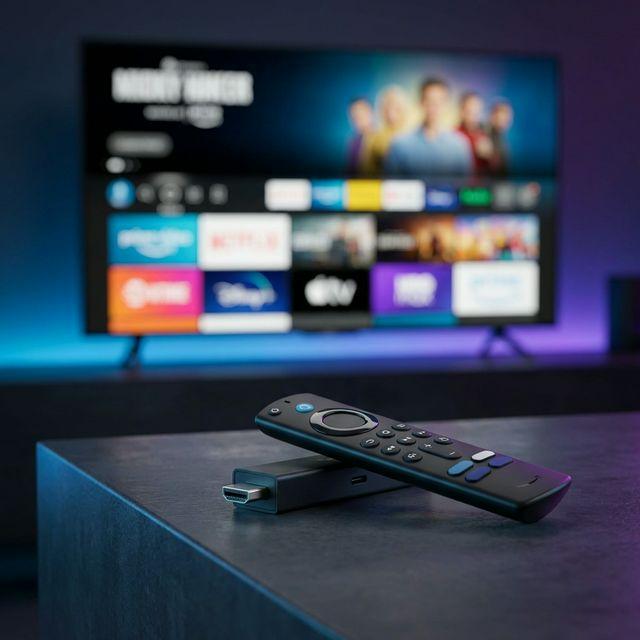
How to Setup IPTV on Firestick: The Ultimate 2026 Installation Guide
Tired of buffering? Master your streaming with our 2026 Firestick setup guide. Follow our step-by-step instructions for 4K quality, instant activation, and zero buffering. Start streaming today!
Pre-Setup Checklist: Optimizing Your Firestick
Before installing any IPTV player, it's crucial to prepare your Amazon Fire TV Stick to accept third-party applications. This process is called "Jailbreaking" or "Sideloading," and it is 100% legal and safe. It simply removes Amazon's restrictions to allow you to install the best streaming apps.
Requirements
- Any Fire TV Stick (Lite, 4K, 4K Max, Cube)
- Stable Internet Connection (25 Mbps+ recommended)
- StreamVerse Subscription (Username & Password)
- 10 Minutes of Free Time
What We Will Do
- Enable "Developer Options"
- Install the "Downloader" App
- Install IPTV Smarters Pro (or TiviMate)
- Login with StreamVerse Credentials
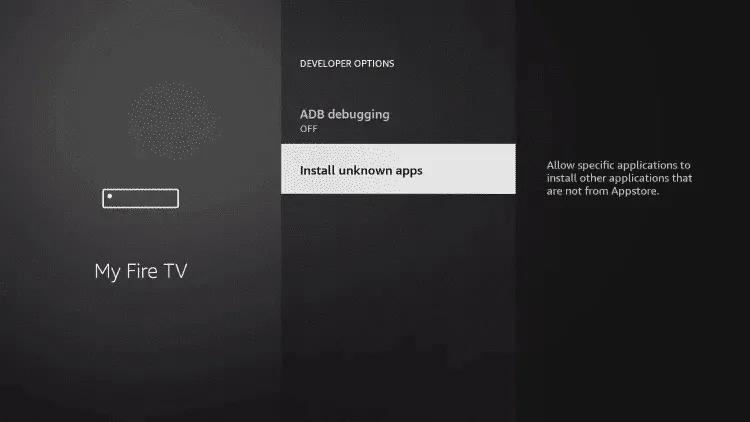
Phase 1: Enabling Developer Options
Newer Firestick updates have hidden the "Developer Options" menu by default. Here is the trick to unlock it:
- Go to Settings (Gear Icon) on the far right of the home menu.
- Select My Fire TV.
- Click on About.
- CRITICAL STEP: Highlight Fire TV Stick 4K (or your device name) and click the Select button on your remote 7 times rapidly. You will see a message: "No need, you are already a developer."
- Press the Back button once. You will now see Developer Options appear in the menu.
- Click it and turn ON "Apps from Unknown Sources".
Phase 2: Installing the Downloader Tool
Since IPTV apps aren't in the Amazon App Store, we need a special browser called "Downloader" to get them.
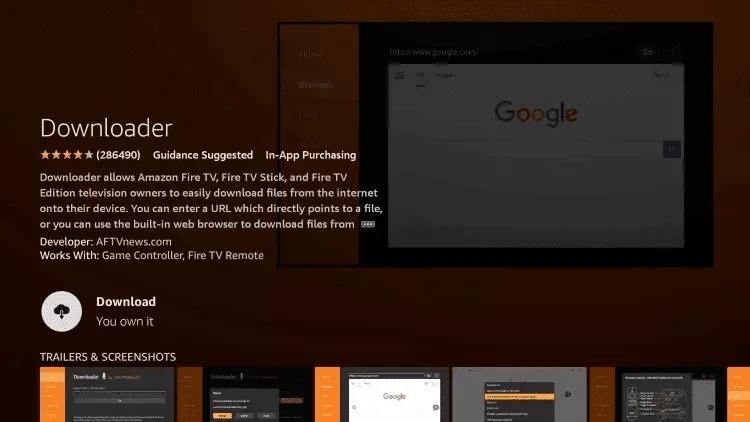
- Press the Home button on your remote.
- Navigate to the Find/Search icon (magnifying glass).
- Type "Downloader".
- Select the orange app icon titled "Downloader" by AFTVnews.
- Click Get or Download.
- Once installed, Open the app and allow any permission requests.
Phase 3: Setting Up Your IPTV Player
Choose your preferred player. We strongly recommend IPTV Smarters Pro for beginners due to its user-friendly interface.
Option A: IPTV Smarters Pro (Recommended)
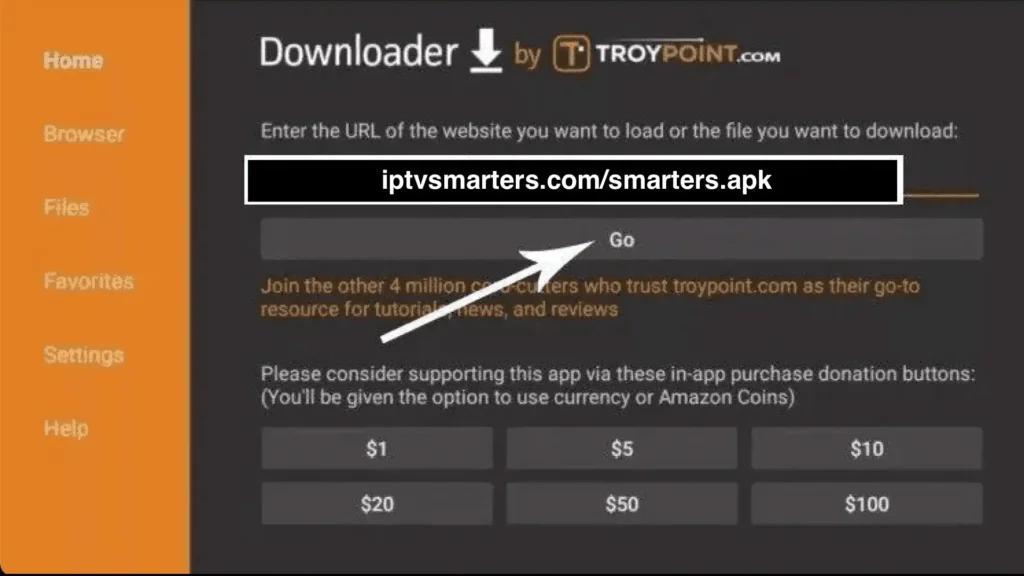
- Open the Downloader app.
- Click into the URL box and enter this code: 78522 (or type
https://iptvsmarters.app). - Click Go. The file will start downloading automatically.
- Click Install when the download finishes.
- Click Done (do not open yet). Delete the installation file to save space.
- Return to your Apps list and open IPTV Smarters Pro.
Option B: TiviMate (Advanced)
Best for power users who want a cable-like TV guide experience. Note: Some features require a separate premium license.
Use Downloader code: 191081 (Official TiviMate).
⚠️ Use the Right Server!
You have installed the app (the "car"), but now you need the fuel (the "server") to make it run.
Warning: Connecting free or cheap servers to Smarters Pro will result in:
- Constant Buffering & Freezing
- Low Quality SD Streams (No 4K)
- Missing Channels & Empty EPG
For a flawless, buffer-free experience with access to 50,000+ Channels and 4K Sports, use the StreamVerse Premium Server.
Start Streaming in 5 Minutes

Monthly Plan
Test the quality risk-free
$29.99 $9.99
- 50,000+ Live Channels
- No Buffering Tech

Yearly Plan
Most popular choice
$239.99 $59.99
- Save $180/year
- Priority Support

6-Month Plan
Great balance
$119.99 $37.99
- Save $82
- Included Full Tech Support
💡 Pro Tip: Clear Your Cache
Firesticks have limited storage. If your stream starts buffering after a few months, it's likely a full cache.
Settings > Applications > Manage Installed Applications > IPTV Smarters Pro > Clear Cache (NOT Clear Data!)
🛡️ Do I Need a VPN?
If you live in the UK or USA, your Internet Provider (ISP) may throttle streaming during peak hours (football games).
We recommend using a VPN like NordVPN or Surfshark to encrypt your data and prevent throttling.
Troubleshooting Common Setup Issues
I get a 'Parse Error' when installing Smarters. What do I do?
This usually means the download was incomplete or corrupted. Delete the file in Downloader and try downloading it again. Ensure you have a stable internet connection. If it persists, try an alternative code or URL.
My channels are buffering. Is it the app or the server?
90% of buffering is caused by local internet instability or ISP throttling. 1. Reboot your router. 2. Use an Ethernet cable if possible. 3. If you are in the UK/USA during a big game, try a VPN. If issues persist, contact StreamVerse support to check your nearest server location.
How do I add EPG (TV Guide)?
If you logged in using Xtream Codes (as shown in Phase 3), the EPG is added automatically! Just click 'Install EPG' on the main dashboard of IPTV Smarters Pro and wait for it to load.
Can I use this on my other TV?
Yes! Your StreamVerse credentials work on any device. However, you can only watch on as many screens simultaneously as your plan allows (1, 2, or 3 connections). Check our pricing to add more screens.
Explore More Firestick Guides
Best IPTV for Firestick Plans
Already know how to setup? Browse our optimized Firestick plans and features.
ActiveBest IPTV USA Guide
Looking for the best US channel list for your device? See our USA channel lineup.
Active