
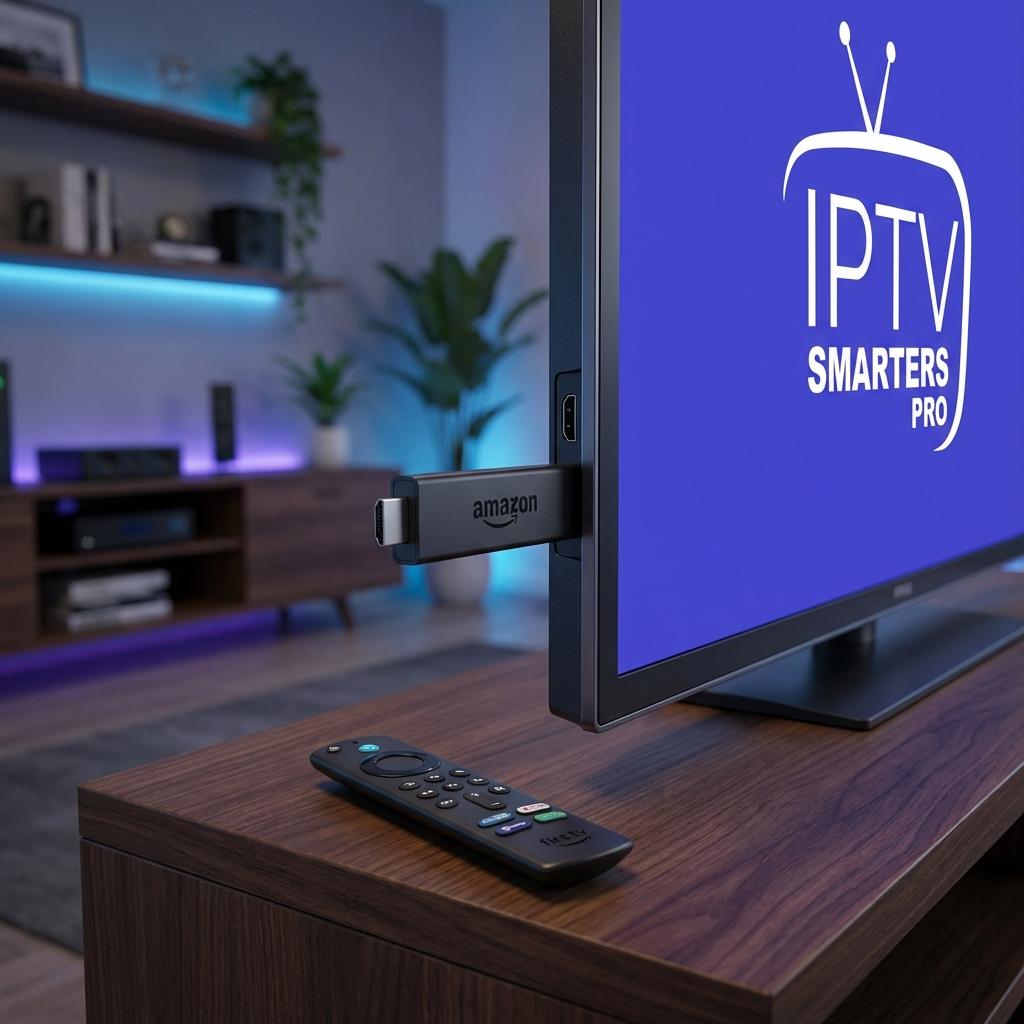
Quick Access: Get IPTV Smarters Pro Now
App: Downloader
Code: 78522
Status: ✅ Working & Verified (January 2026)
Compatible: Fire TV Stick 4K, Fire TV Cube, All Fire TV Devices
Enable Developer Options & Unknown Sources
Before you can sideload party apps like IPTV Smarters Pro, you must enable Apps from Unknown Sources on your Firestick. Amazon recently changed this process, making it less obvious.
Steps to Enable Unknown Sources:
- From your Fire TV home screen, navigate to Settings (gear icon)
- Select My Fire TV or Device
- Click on your device name 7 times — This reveals the hidden Developer Options menu
- Select Developer Options (now visible)
- Turn on Apps from Unknown Sources
- Confirm the warning prompt by clicking Turn On
Important: This setting allows you to install party apps not available in the official Amazon Appstore. This is required for IPTV Smarters Pro installation.
Install IPTV Smarters Pro Using Code 78522
Follow these numbered steps exactly to install IPTV Smarters Pro on your Amazon Firestick or Fire TV Cube.
Installation Steps:
-
Open the Downloader App
Search for "Downloader" in the Amazon Appstore and install it (it's free) -
Launch Downloader
Open the app and allow permissions if prompted -
Enter the Code
In the URL field, enter: 78522
Click Go -
Download Begins
The IPTV Smarters Pro APK will download automatically -
Install the App
Once downloaded, click Install
Wait for the installation to complete -
Click Done
After installation completes, click Done -
Delete the APK File
⚡ Pro Tip: Immediately click DELETE when prompted. This removes the APK file from your device and frees up valuable storage space. The app will remain installed. -
Launch IPTV Smarters Pro
Find the app in your Apps & Channels section and open it
📸 Need visual guidance? View detailed screenshots and step-by-step images on our Help page →
Fire TV Stick vs. Fire TV Cube for IPTV
Which Device is Better for Streaming IPTV?
Both the Amazon Fire TV Stick 4K and Fire TV Cube can run IPTV Smarters Pro, but there are key differences:
Fire TV Stick 4K:
- 2GB RAM
- Excellent for single-screen IPTV streaming
- Affordable entry point
- Handles HD and 4K streams smoothly
Fire TV Cube (Recommended for Power Users):
- 2GB-3GB RAM (depending on generation)
- Better processor performance
- Ideal for multiscreen IPTV features
- Handles simultaneous streams without buffering
- Faster app switching and navigation
Verdict: If you only watch one stream at a time, the Fire TV Stick 4K is perfect. However, if you use multiscreen features or want to run multiple IPTV apps simultaneously, the Fire TV Cube's extra RAM and processing power make it the superior choice.
Troubleshooting Common Installation Errors
Parse Error
What it means: The APK file was corrupted or didn't download completely.
Solution:
- Delete the corrupted APK from Downloader
- Clear the Downloader cache (Settings → Clear Data)
- Re-enter code 78522 and try again
- Ensure stable internet connection during download
Status Error / App Won't Download
What it means: JavaScript is disabled in Downloader settings, blocking the download.
Solution:
- Open the Downloader app
- Go to Settings (gear icon)
- Find Enable JavaScript option
- Turn it ON
- Return to home and re-enter code 78522
📸 See the exact settings screens? Check our Help page for visual troubleshooting guides →
App Installed But Won't Open
Possible causes:
- Conflicting VPN settings
- Insufficient storage space
- Corrupted installation
Solution:
- Restart your Firestick (Settings → My Fire TV → Restart)
- Clear 500MB+ storage space if low
- Uninstall and reinstall using code 78522
Conclusion
Installing IPTV Smarters Pro on your Amazon Firestick or Fire TV Cube is straightforward using the verified Downloader code 78522. By following this guide, you've successfully sideloaded a party app and unlocked advanced IPTV streaming capabilities.
Remember to enable Developer Options by clicking your device name 7 times, always delete APK files after installation to save space, and use the Fire TV Cube if you need multiscreen support or run demanding IPTV applications.
Ready to Start Streaming?
Get your premium IPTV subscription and unlock thousands of channels, VOD content, and live sports.
Last Updated: January 2026
Downloader Code Status: ✅ Verified Working